Planning
Story maps
A story map lays out one user journey as stages. It names who does each stage and how they do it today, and it ranks the goals under each stage.
A story map describes one user journey from start to finish. Stages run left to right in the order a person moves through the journey. Under each stage, the map names who does the stage, how they do it today, and the goals that will improve it, most important first.
The story map says what to build and in what order. The roadmap says when each goal lands and who owns it.
This page builds the map of Northwind Industries, a mid-size manufacturer. Today, adding a new supplier takes weeks of emails and spreadsheets. A team of seven builds a supplier onboarding portal in a Roko Platform project called Vendor Onboarding. The journey on the map is Onboard a new supplier. It starts when a plant engineer needs a new supplier and ends when that supplier is paid and its records stay current. Open the Story maps page from the project sidebar to follow along.
Story map
Onboard a new supplier
The journey, in order
Stages
Persona
Workaround today
Stories · most important first
Priority
Create a map
On the Story maps page of your project, click New story map, enter a name, and click Create map.
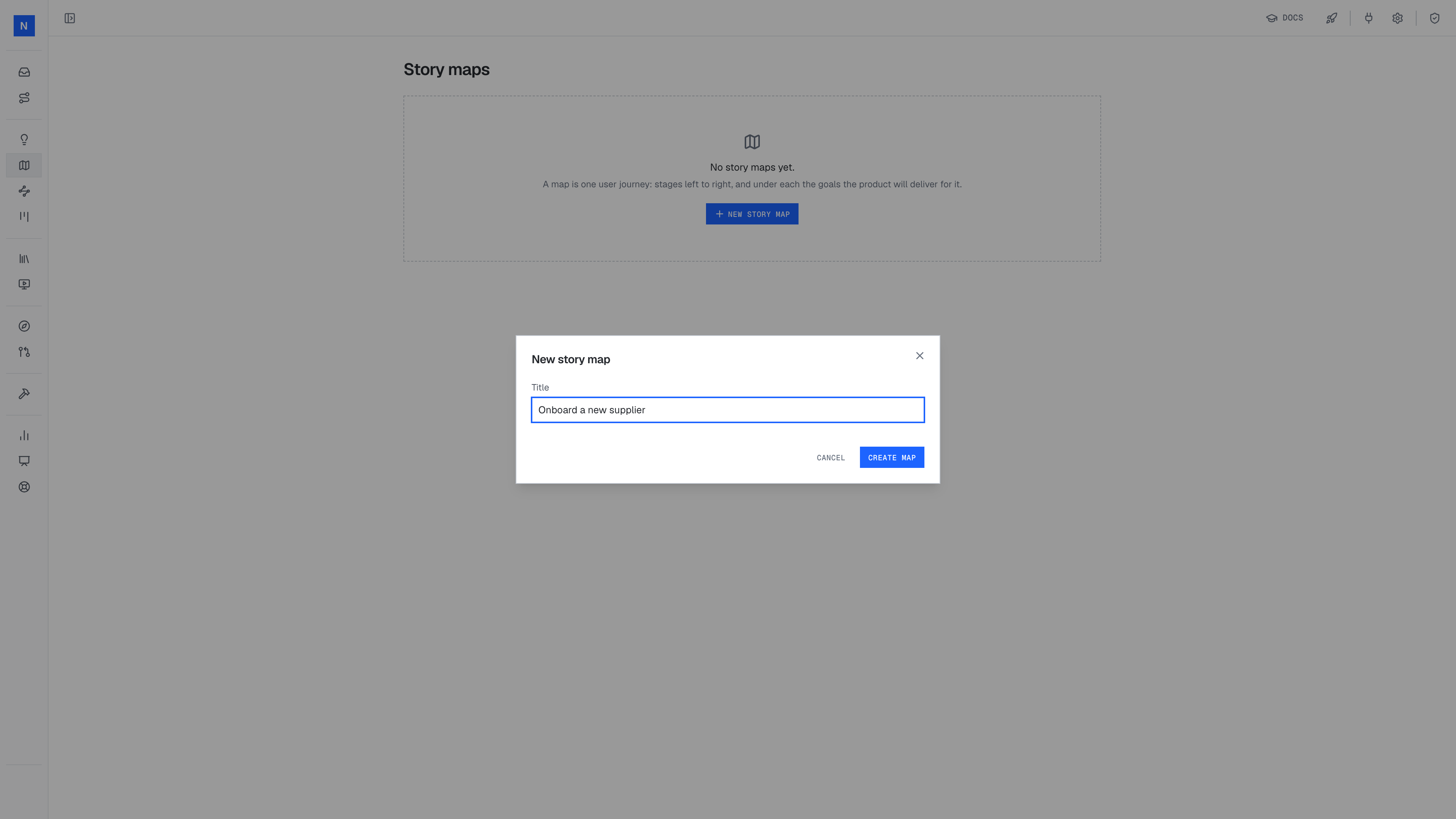
- 1Name the map after the journey, for example "Onboard a new supplier".
- 2Create map opens the empty map.
Add stages
The new map has one row for stages, one for personas, one for workarounds and one for the stories. Click Add stage at the right end of the stage row for each step in the journey, and name the stage for what the person does.
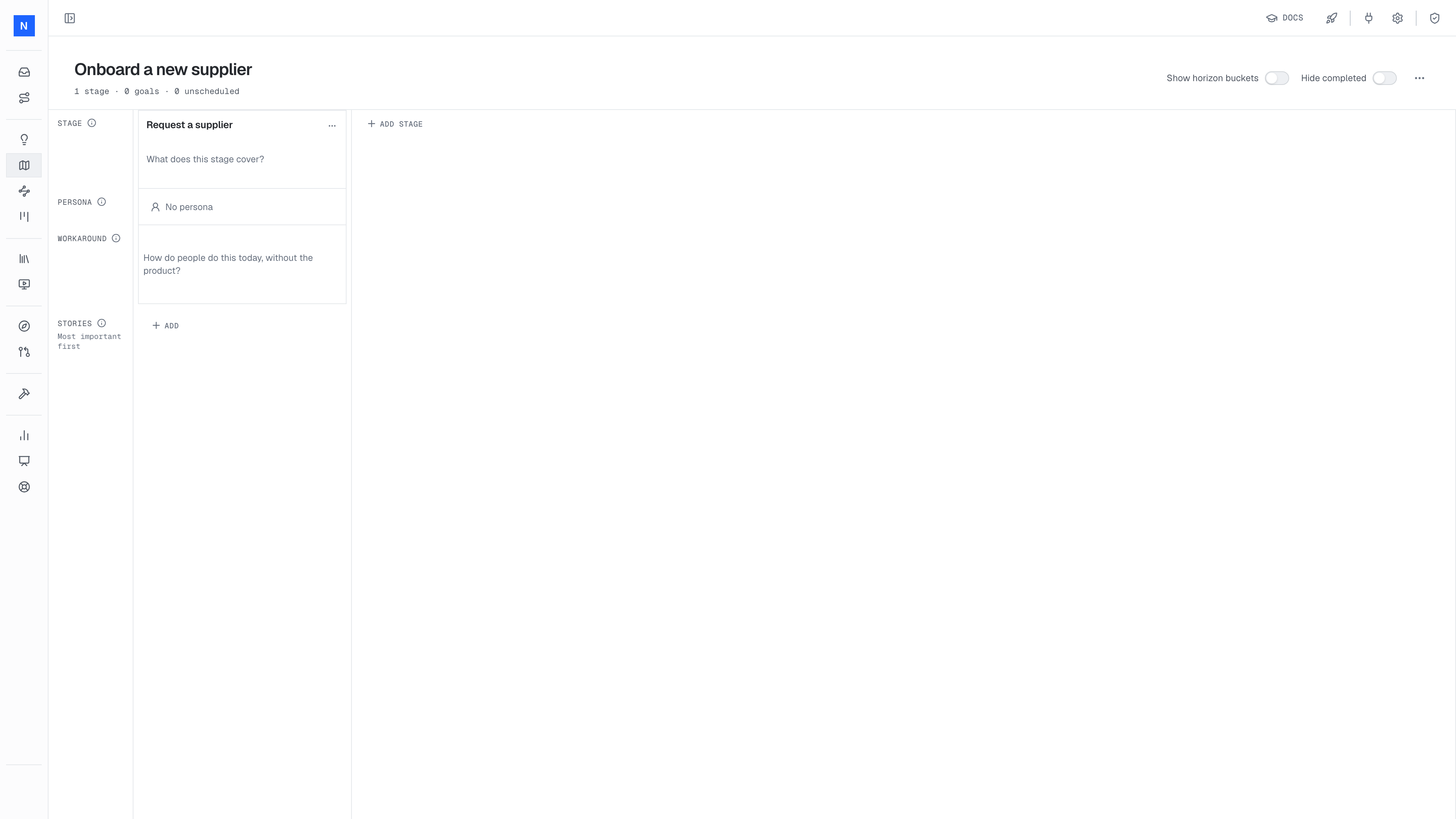
- 1The new stage. Its description says what the stage covers.
- 2The persona slot names who does the stage.
Each row header has an info icon. Hover it to read what the row holds.
Add personas
Under each stage, the persona slot asks "Who does this stage?". Pick an existing persona, or type a new name and create it. The platform gives each persona its own color and tints the column to match.
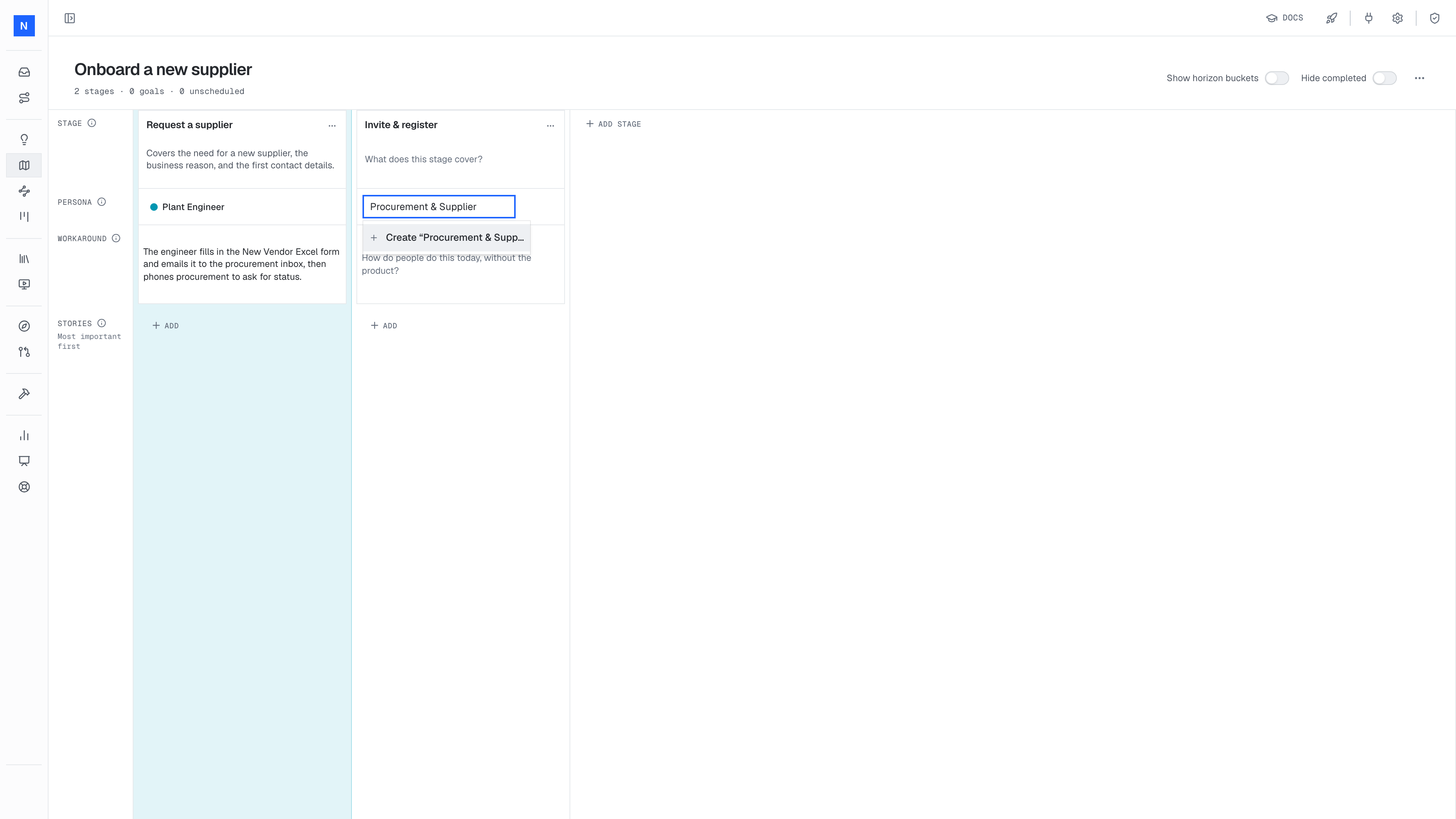
- 1The persona slot. Type to search the project's personas.
- 2Creates the persona and fills the slot.
When two roles share a stage, create one persona that names both, such as "Procurement & Supplier". See shared stages.
Write the workarounds
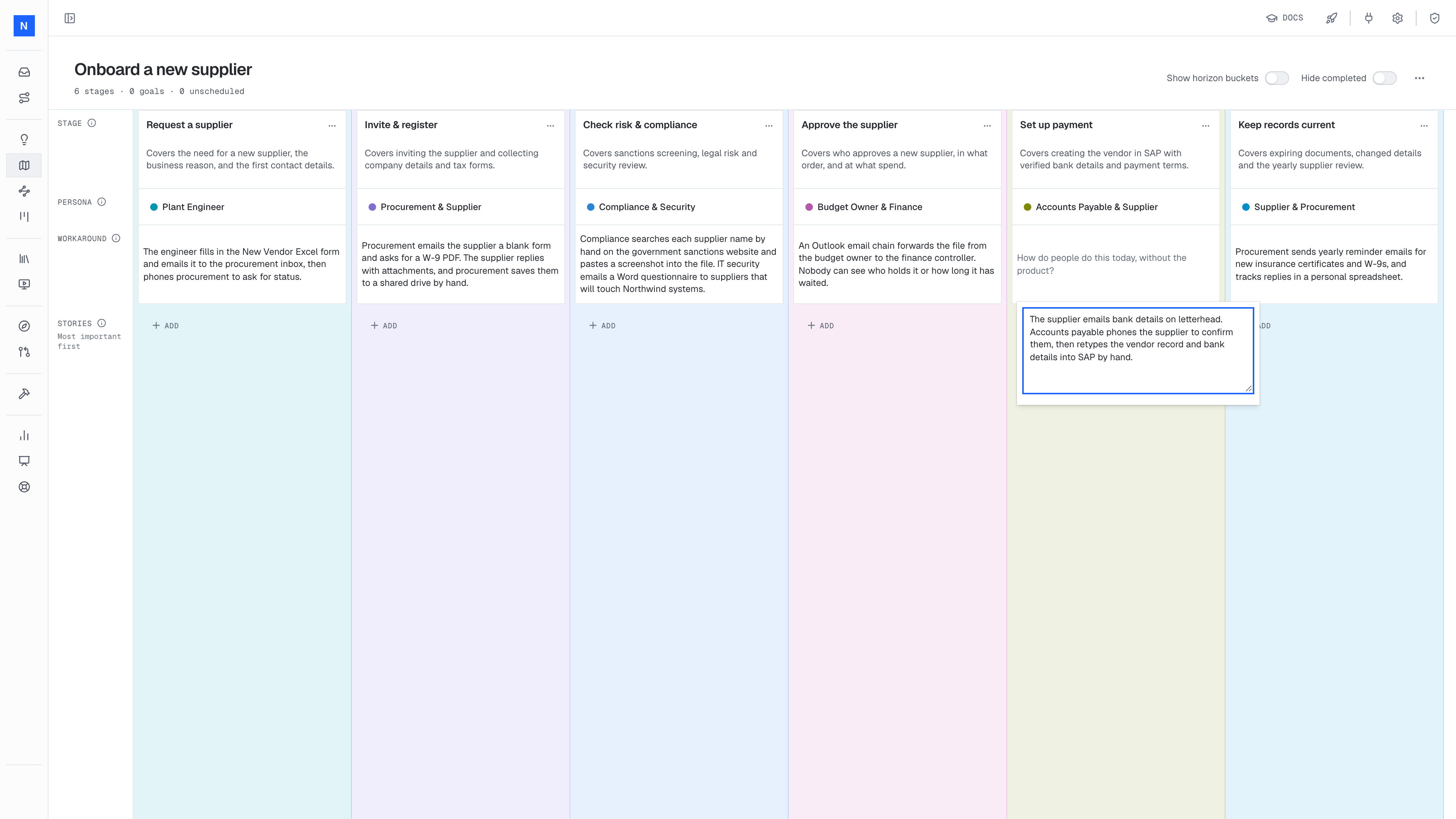
Click the workaround cell under a persona and type today's process. Name the tool and the manual step.
Add goals
Click Add at the foot of a column. The dialog has three tabs. On New goal, enter a title, pick a horizon and an owner if you know them, and click Create goal.
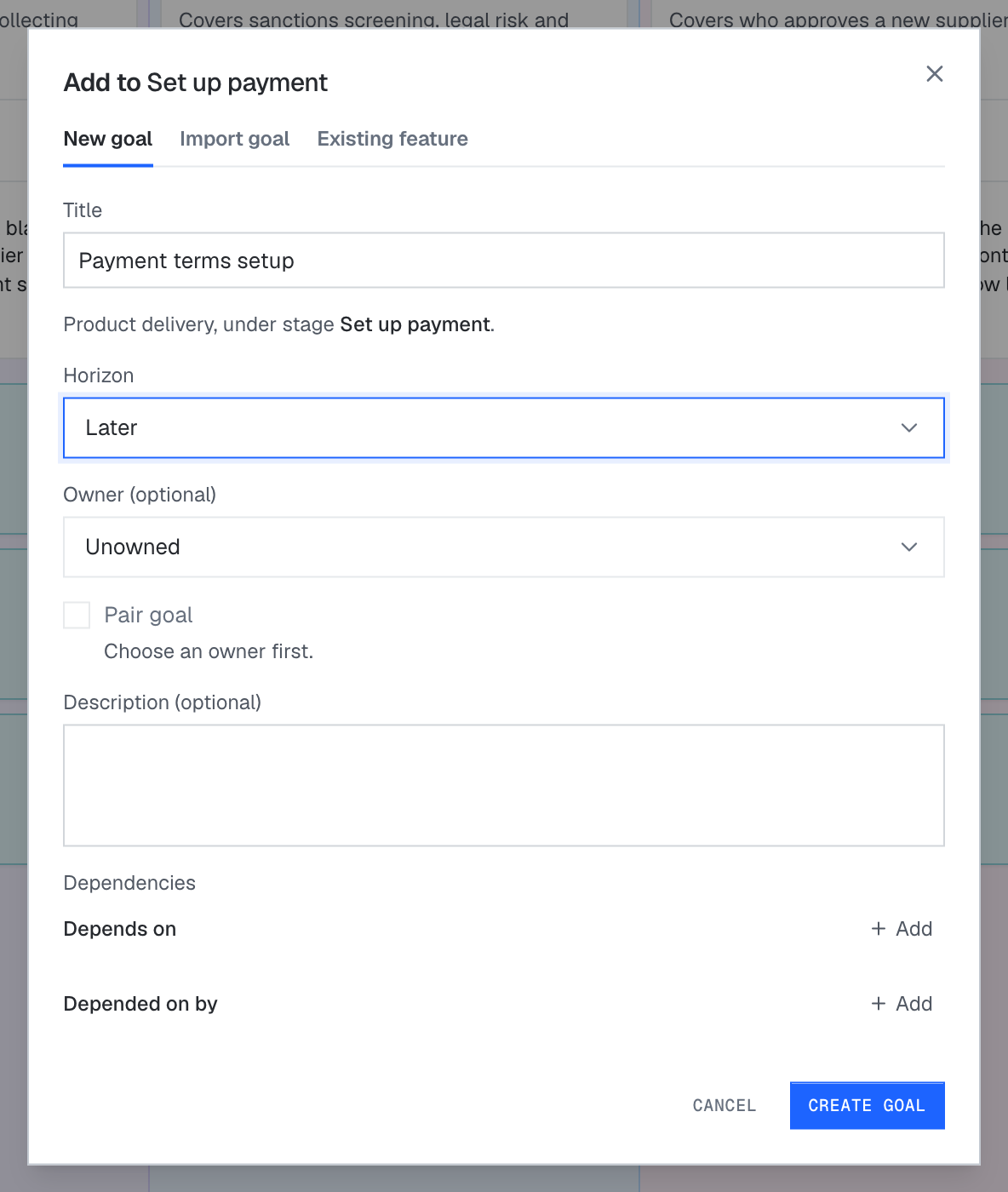
- 1New goal creates a product delivery goal under this stage.
- 2Import goal brings goals that already exist onto this stage.
- 3Existing feature records what the product already does.
A goal made on a story map is a product delivery goal, and it always sits under one stage. The platform draws product goals in teal, on the map and on the roadmap.
Import goal can bring several goals at once. It turns a goal of any other kind into product delivery, moves a product delivery goal away from its old stage, and places each imported goal last in the column.
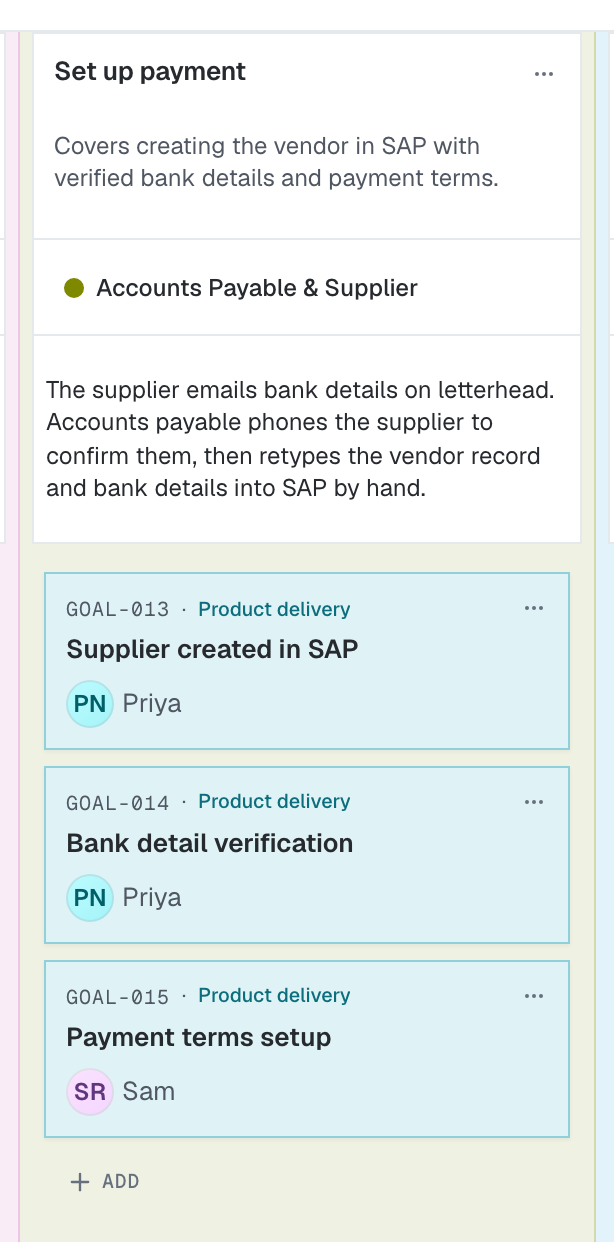
- 1The top goal. It is part of the walking skeleton.
- 2Each card shows the goal number, the kind and the owner.
- 3Add opens the dialog for a new goal.
Reorder goals
Drag a goal up or down its column to change its priority. The goal at the top of each column is part of the walking skeleton. In the Set up payment column above, the team dragged Bank detail verification from third to second place, above Payment terms setup.
Horizon buckets
Switch on Show horizon buckets in the map toolbar to slice the map by when each goal is due. Each bucket is a time band of the roadmap, such as This week, Next week or Later. Each goal sits in the bucket of its due date, so you can see which part of each column lands first. Hide completed removes finished goals from the map.
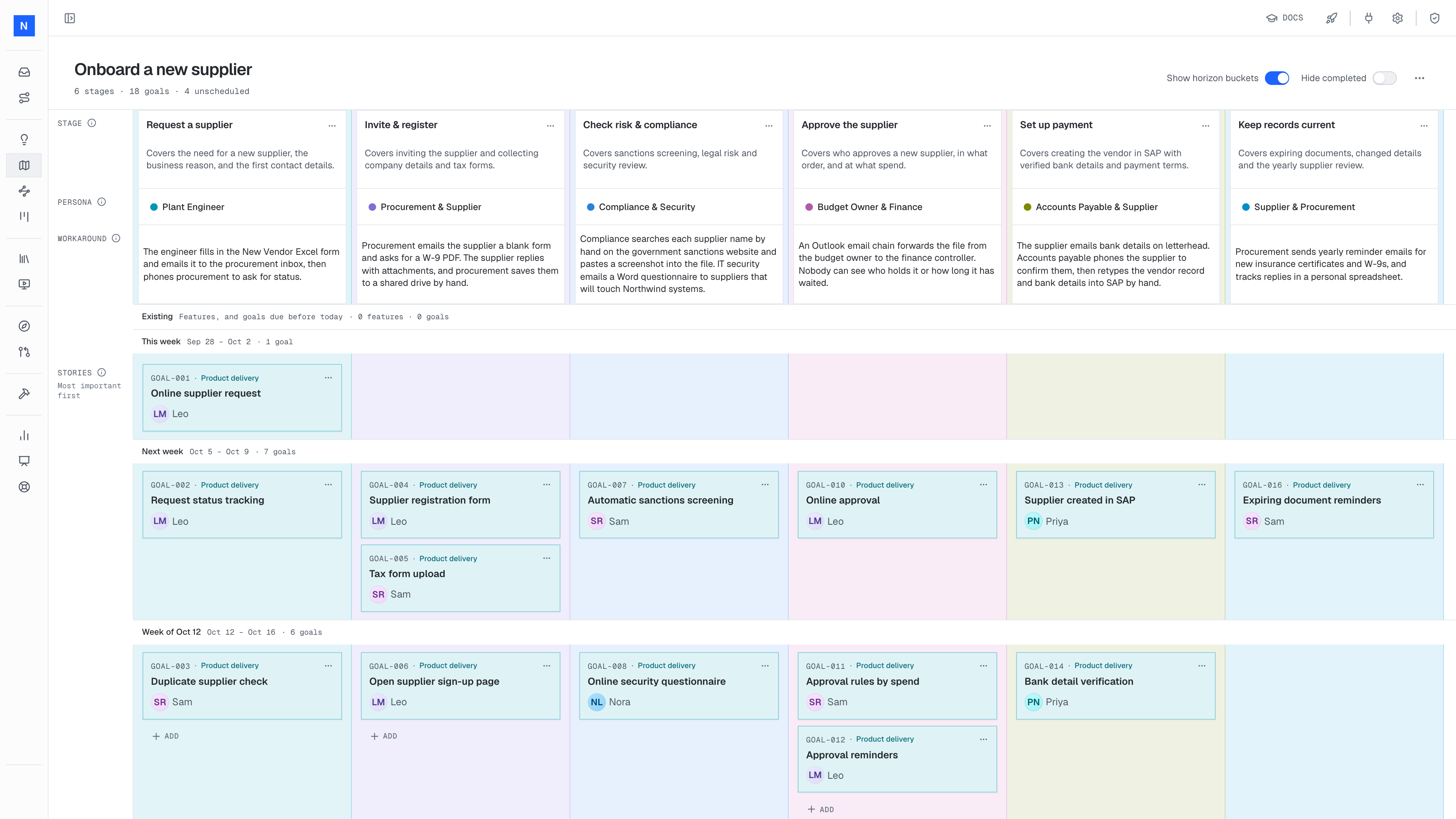
- 1Due this week, so it sits in the first bucket.
- 2Due next week, so it sits in the next bucket.
The band where a goal sits on the roadmap sets its due date. Move a goal to another band there, and it moves to that bucket on the map. See placing goals.
Existing features
Many products are already live. Say Northwind already runs an invoice portal, and the team adds to it. Put what the product already does on the map too, so the map still shows every story.
Under a stage, click Add and choose Existing feature. Enter a title, describe what the feature does today, and click Add feature.
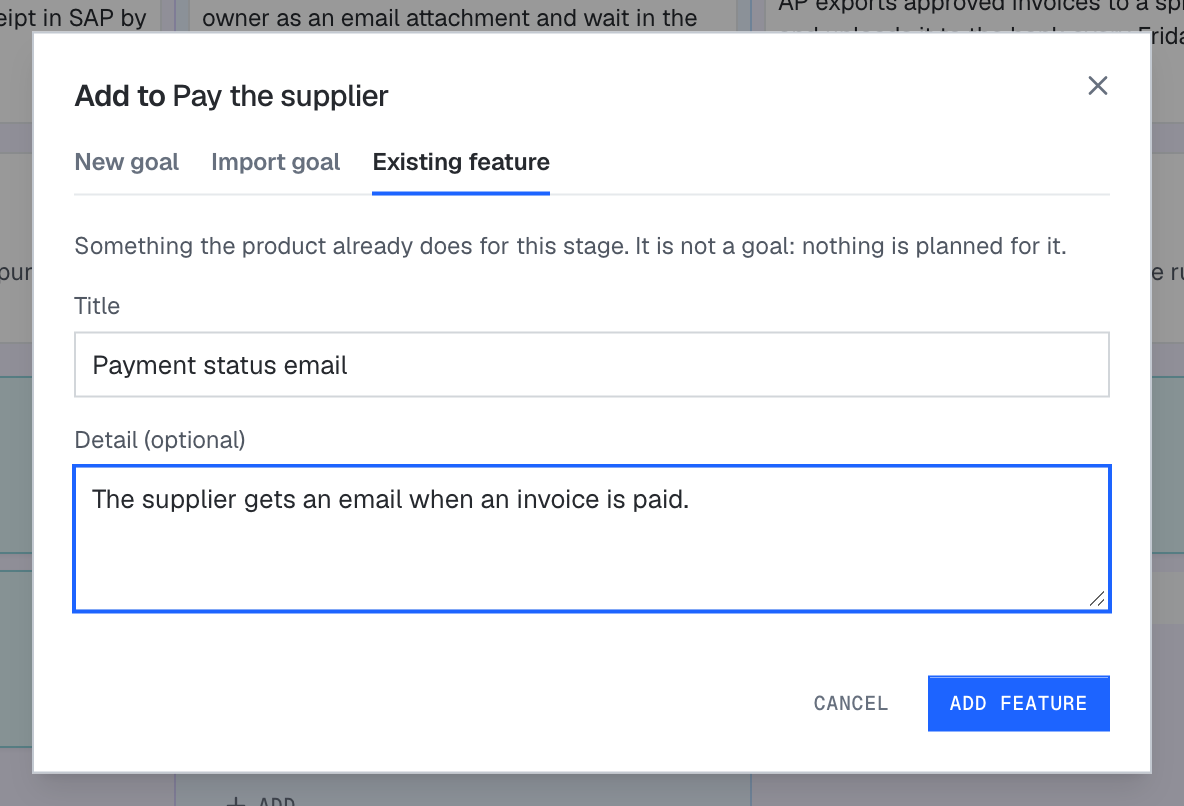
- 1The feature's name.
- 2What the feature does today.
An existing feature:
- sits at the top of its column, above the goals,
- has no owner and no due date,
- stays off the roadmap.
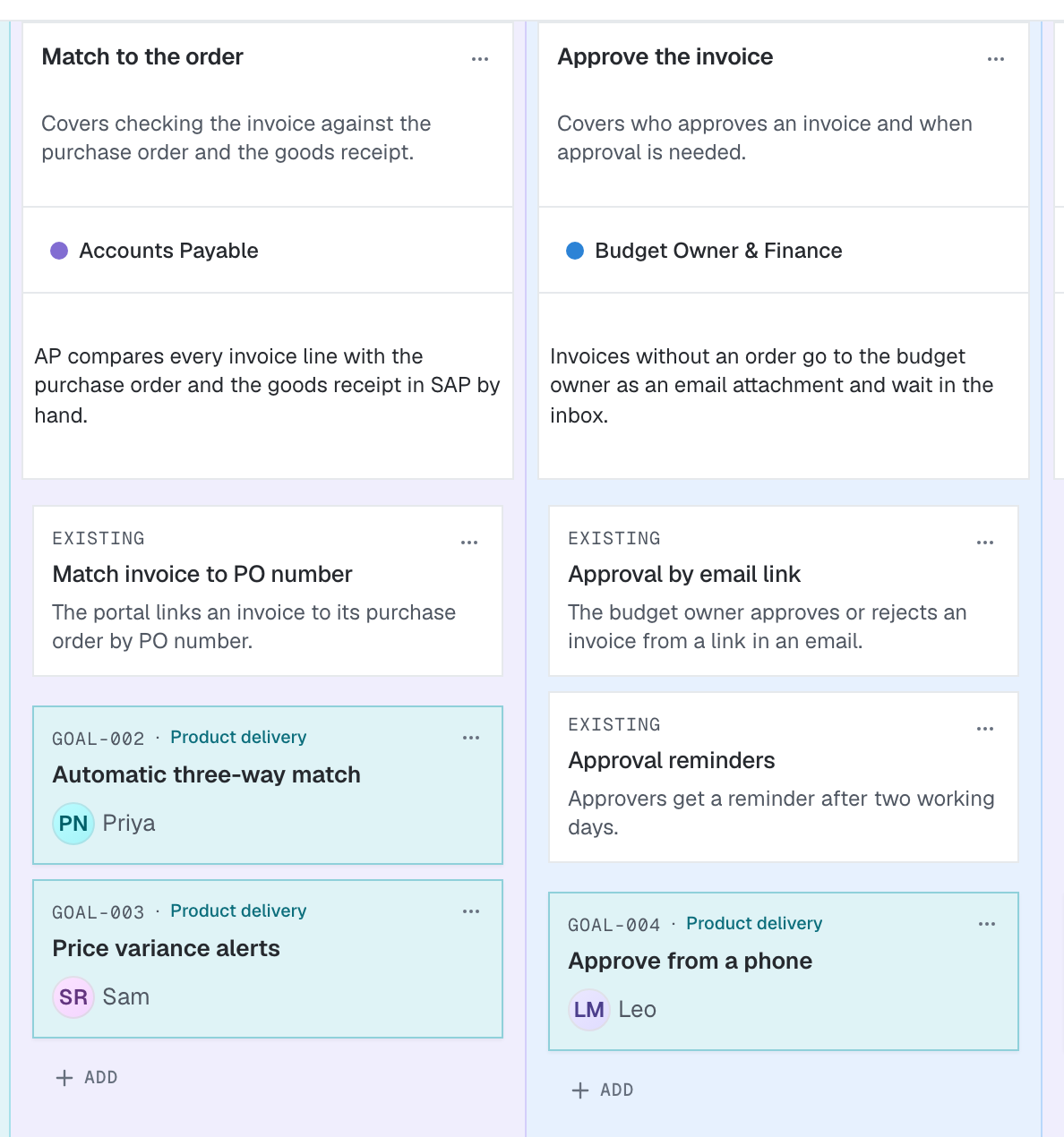
- 1An existing feature. It has no owner and no due date.
- 2A new goal. It sits below the existing features of its stage.
Why a map
Every product team faces two risks. A story map guards against both.
Building the wrong thing
The software works, but it does not help the people who use it. A flat list of tickets hides the big picture, so nobody can see what the product does or what is missing. A map lays out the whole journey on one page. The team, the users and the stakeholders can all read it and point at the gaps.
A flat list
- NW-141Bank detail verification
- NW-118Online supplier request
- NW-156Supplier risk score
- NW-122Approval reminders
- NW-137Tax form upload
- NW-149Annual supplier review
- NW-130Automatic sanctions screening
Nobody can see the journey or what is missing.
The same work as a map
Building the most complex thing first
The team spends months on the hardest feature and ships nothing. The better way is to build every stage of the journey a little at a time, so that every release works end to end. Jeff Patton describes it this way: you never release a car without brakes. The walking skeleton pattern shows how a map makes this slice visible.
Stages
A stage is one step in the journey, named in two or three words. Put the stages in the order you would explain the journey to someone. Together, the stages are the backbone of the product.
Northwind has six stages:
- Request a supplier
- Invite & register
- Check risk & compliance
- Approve the supplier
- Set up payment
- Keep records current
You do not rank stages. The product needs all of them for the journey to work, so the left-to-right order is the order of the journey, not an order of importance.
Stages and features
Name each stage for what the person is trying to do, not for something you build. "Check risk & compliance" is something a person does, and many features sit under it. "Sanctions screening" is a feature, so it goes under that stage as a goal.
Stage: what people do
A person does this step. Many features sit under it as goals.
Feature: a goal in the column
Sounds like something you build
It becomes a goal under Check risk & compliance.
Stage count
Most journeys have between four and eight stages. Fewer than four usually means a stage hides several steps, which leads to one giant column. More than ten usually means some stages are features or sub-steps. Test each stage with one question: would a person describe this step when they explain the journey to a new colleague?
Personas
A persona names who does a stage. Each stage has exactly one persona. Give each persona its own color, and color each column by its persona. Follow one color across the map to follow one person through the journey.
Shared stages
When two roles share a stage, name them both in one persona with an ampersand. At Northwind, procurement and the supplier share Invite & register: procurement sends the invite, and the supplier fills in the company details. The budget owner and finance share Approve the supplier in the same way.
Do not split a shared step into two stages only because two roles take part. Split it when each role does a separate step that a user would name on its own.
Workarounds
The workaround is how the job gets done today, without the product. Name the tool and the manual step. At Northwind:
- Engineers email a New Vendor Excel form to procurement, then phone to ask for status.
- Compliance checks each supplier name by hand on a government sanctions website.
- Accounts payable retypes the vendor record and bank details into SAP.
The workaround sets the bar. Your first release has to do the job better than the workaround, or people keep using the workaround.
How well the job gets done
Today
Release 1
The bar to beat. Today: bank details retyped into SAP.
Goals as stories
On a story map, the goals are the stories. Add them under each stage and rank them, most important at the top. You rank the goals in a column, not the stages.
Under Set up payment, the team ranks three goals. Supplier created in SAP comes first, because it removes the retyping. Bank detail verification comes second, and payment terms setup comes third.
Product goals only
Every goal on a story map is a product delivery goal: a change a user of the product can see. Technical work, such as supplier sign-in or an SAP vendor sync, is an enabling delivery goal. It lives on the roadmap, not on the map. See technical goals. Open questions about a goal's shape become discovery goals on the roadmap, placed in front of the goals they shape.
The MVP line
Read across the top row. The first goal in each column forms the minimum viable product. It is thin, but it covers the whole journey. This slice is called the walking skeleton. Northwind can use it from end to end, and the team adds depth to each column later.
Story map
Onboard a new supplier
Stages
Persona
Workaround today
Stories · most important first
On the roadmap, the team places the walking skeleton in the first time bands and leaves richer goals, such as the supplier risk score, in Later.
A second example
The same method works for any journey. Lumen Home is an online furniture store. Its support team handles damaged deliveries by email, and returns take two weeks. The team maps the journey Return a damaged order.
Story map
Return a damaged order
The journey, in order
Stages
Persona
Workaround today
Stories · most important first
Priority
Two choices in this map follow the rules above. "Choose a fix" is a stage, and "Instant approval under $50" is a goal under it, because approval is one way to do the step. The top goal under "Send the item back" is a prepaid label, not courier pickup, because the label is the thinnest change that beats today's emailed link.
Patterns
These patterns come up in most good maps. Each one names when to use it.
Walking skeleton
Use it for every first release. Rank one goal at the top of every column so the top row covers the whole journey. Resist the urge to finish one stage first.
One stage at a time
Release 1 covers one stage in depth. Nobody can finish the journey, so the old workaround stays.
The thinnest slice first
Release 1 covers every stage with its top goal. The journey works end to end, and later releases add depth.
Beat the workaround first
Use it when you rank the top goal of a column. Pick the goal that removes the worst manual step in the workaround. Under Check risk & compliance, "Automatic sanctions screening" ranks first because the workaround is a name search by hand on a website. The security questionnaire can wait.
Map the live product first
Use it when the product is already live. Record what it does today as existing features before you add goals. The map then shows the whole journey, and new goals read as additions to a working product. See existing features.
Existing
Upload invoice PDF
Existing
Match invoice to PO number
Existing
Approval by email link
One map per journey
Use it when a project serves more than one journey. Northwind's Vendor Onboarding project could hold "Onboard a new supplier" and "Offboard a supplier". Each map covers one journey that one set of people moves through. Most projects need only a handful of maps.
Slice the map by horizon
Use it when you plan the next few weeks. Group the goals of each column by the time band they are due in. Check that the first band holds the walking skeleton and that no column is empty in it. In the platform, the horizon buckets switch shows this view.
Put uncertainty in front
Use it when you cannot yet describe a top goal well enough to build it. Keep the goal on the map, and add a discovery goal on the roadmap with a dependency from it to the goal. Northwind does not yet know if SAP takes vendor records by API or by file drop, so a spike sits in front of "Supplier created in SAP".
Antipatterns
Each antipattern below names the symptom you see on the map, why it hurts, and the fix.
Stages named as features
- Symptom
- The stage row reads like a component list: “Web form”, “Sanctions API”, “SAP connector”.
- Why it hurts
- Users and stakeholders cannot read the journey from it, and the columns fill with tasks for that component instead of changes for a person.
- Fix
Rename each stage for what the person does, and move the feature into the column as a goal.
Stages named for what you build
Stages named for what people do
A map per team or component
- Symptom
- The project has maps called “Frontend”, “Backend” or “SAP integration”.
- Why it hurts
- No map shows a whole journey, so nobody can see the gaps or the walking skeleton. Each team ranks its own work without the user in view.
- Fix
Make one map per user journey. Teams take goals from every map. Ownership is set per goal on the roadmap, see owners and pair goals.
Maps per team
- FrontendA team
- Backend APIA component
- SAP integrationA system
- Mobile appA channel
Maps per journey
- Onboard a new supplierPlant engineer to paid supplier
- Offboard a supplierContract end to closed account
One giant column
- Symptom
- One stage holds most of the goals, and the other stages hold one or two.
- Why it hurts
- The big stage hides several steps. Its ranking mixes unrelated work, and the walking skeleton cannot cover the steps inside it.
- Fix
Split the stage into the steps a person actually takes, and move each goal under its step.
One stage hides four steps
Each step is its own stage
Unranked goals
- Symptom
- Every goal carries the label “High”, or the column order is the order in which people added the goals.
- Why it hurts
- The top row no longer means anything, so the MVP line is a guess. The roadmap inherits the guess.
- Fix
Rank each column strictly from top to bottom. Ask stakeholders to help set the order.
Everything is high priority
High
Payment terms setupHigh
Supplier created in SAPHigh
Bank detail verificationOne order, top to bottom
An MVP row that skips a stage
- Symptom
- A column has no goal at the top, or its top goal can wait while the rest of the journey ships.
- Why it hurts
- The first release breaks the journey at that stage, so people fall back to the workaround for the whole process.
- Fix
Put the thinnest goal that beats the workaround at the top of every column, even if it is simple.
The journey breaks at approval
Every stage has a top goal
Technical tasks as stories
- Symptom
- Columns hold goals such as “Set up Postgres” or “CI pipeline”.
- Why it hurts
- A user cannot see these changes, and a stakeholder cannot rank them against user-facing goals. They push real stories below the MVP line.
- Fix
Take them off the map. Add them on the roadmap as enabling delivery goals, and link them to the product goals that need them with dependencies.
Technical work in the column
Only product goals on the map
A blank workaround row
- Symptom
- The workaround cells are empty or say “manual”.
- Why it hurts
- Nobody knows what the first release has to beat, so the team cannot tell which goal belongs at the top.
- Fix
Name the tool and the manual step, for example "Compliance searches each name by hand on the government sanctions website". Ask the people who do the work today.
Best practices
- Write titles a CEO would understand. A goal title names the outcome in a few words. "Supplier created in SAP" works. "SAP BAPI vendor create endpoint" does not.
- Walk the map with real users. Go from the first stage to the last with the people who do the work. They point out missing steps and the pain points of today.
- Ask stakeholders to set the order. They know which goal in a column matters most to the business.
- Keep the number of maps small. Most projects need only a handful. One map covers one journey.
- Review the map in the weekly planning session. The product manager and the tech lead check the order on the map, then plan the roadmap. See the weekly rhythm.
Common questions
Where does technical work go?
On the roadmap, as an enabling delivery goal. Link it to the product goals that need it with a dependency. See technical goals.
Where do open questions go?
On the roadmap, as a discovery goal in front of the goals it shapes. See discovery goals.
Does the stage order mean priority?
No. The stage order is the order of the journey. Priority applies only to the goals inside a column.
How many goals should a column hold?
As many as the team can rank with confidence. Three to six is common. A column with many more goals than the others often hides several stages, as in one giant column.
Who owns the story map?
The product manager. They take it into discovery calls, so users can check the journey and stakeholders can help rank the goals.
Can a goal sit under two stages?
No. A product delivery goal sits under exactly one stage. If you import a goal that already sits under another stage, it moves.
Does a story map goal show on the roadmap?
Yes. Every product delivery goal on a story map is also on the roadmap. On the roadmap, swimlanes group the goals by the stages of the map.
What is the difference between an existing feature and a goal?
A goal is planned work. It has an owner and a due date and appears on the roadmap. An existing feature records what the product already does. It has no owner, no due date and no place on the roadmap.